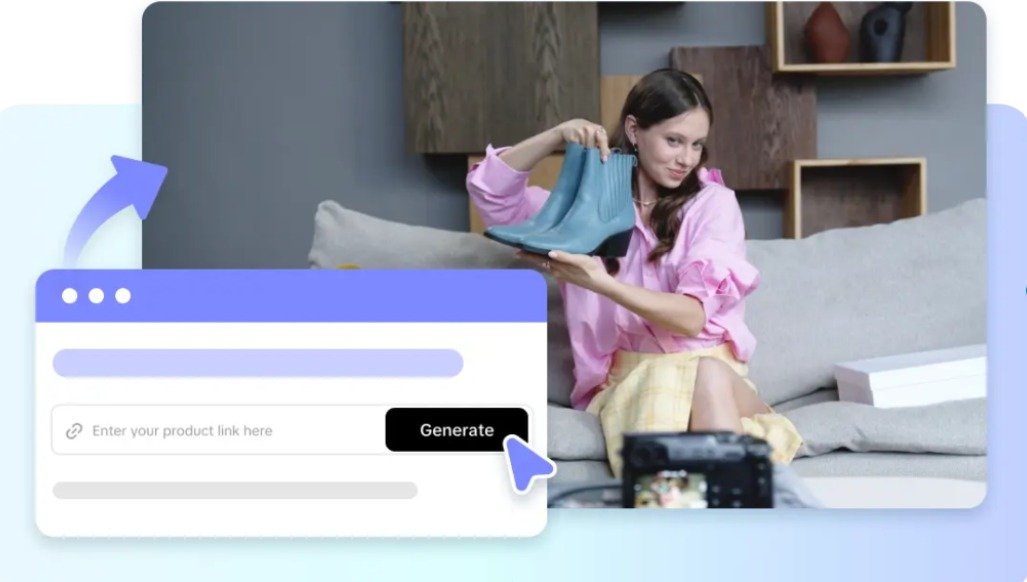
The ability to produce good scenes is not the end of a video. Output settings influence clarity, pacing, framing, accessibility, and compatibility. Aspect ratio is used for presentation on screens and platforms. Resolution can influence the visual sharpness and production quality. The movement during playback will be affected by the frame rate. The audience’s comprehension of the message depends on the language and subtitles. The length of the video determines the pace, the amount of information, and the retention. Pippit brings together generation, editing, and export in a single workflow.
Choose Output Settings According to the Content Purpose
Each content goal has a specific output configuration. Vertical framing may be required for social clips for mobile viewing. Product framing and readable captions might be necessary for promotional videos. Storytelling projects may have longer times and broader shots. While using an AI video generator can make the process easier, careful planning is required when it comes to settings. Choose the aspect ratio based on the platform and the presentation. Subtitles and language should cater to the audience’s needs and viewing conditions. Making these decisions ahead of generation will ensure that the composition is maintained during the production process.

Understand the Difference Between Generation and Export Controls
The settings affect the initial creative structure and composition of the image. Export settings allow you to control attributes of the file being saved. Pippit offers a selection of models that can yield different visual outcomes. The models offered may be Seedance 2.0, Seedance 2.0 Fast, Seedance 2.0 Mini, and Seedance 2.5. Scenes and subject placement can be influenced by the aspect ratio chosen at generation time. Export controls can vary resolution, frame rate, quality, and format. But poorly framed original scenes may not be salvaged by exporting.
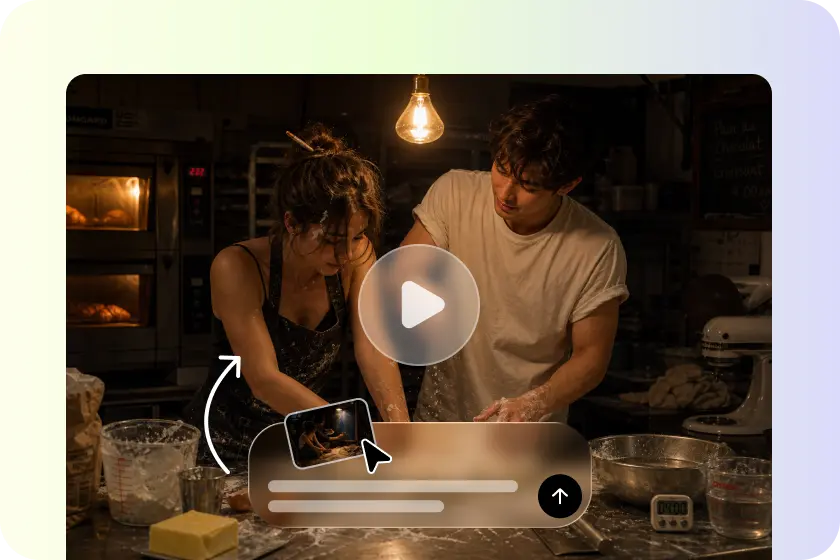
Steps to Customize Video Output Settings Freely with an AI video generator
Step 1: Set your preferred generation options
- Sign up for Pippit with your Google, TikTok, or Facebook account information.
- Navigate to the “More” tab on the left vertical menu bar and click “Video generator”.
- Select an AI model such as Dreamina Seedance 1.0, Dreamina Seedance 2.0, Dreamina Seedance 2.0 Fast, Dreamina Seedance 2.0 Mini, or Dreamina Seedance 2.5.
- Write a detailed text prompt that explains how you want the video to look.
- Set the video length, language, subtitles, and aspect ratio based on your output needs.
- Click “+” to upload reference images or videos from your device, phone, Dropbox, or a link. If you do not have reference media, choose suitable assets instead.
- Once your prompt, media, and settings are ready, click “Generate”.
Step 2: Review the generated output
- After clicking “Generate”, Pippit creates a video based on your text prompt and reference media.
- The AI automatically manages transitions, pacing, captions, avatars, voice, lyrics, and visual enhancements.
- Review the generated video draft and check whether it meets your output requirements.
- If you are not satisfied with the result, click “Regenerate” to create another version. You can click on “Download” if you want to download the generated video.
- For detailed changes, click “Edit more” below the video to open the Pippit editing interface.
Step 3: Adjust final output settings and export
- Manually edit captions and add text to improve the final presentation.
- Adjust text size, color, alignment, filters, and effects according to your preferences.
- Add background music, remove backgrounds, and fine-tune the visuals before exporting.
- Click “Export” in the top right corner once the video is ready.
- Select “Publish” to post directly to TikTok, Instagram, or Facebook, or choose “Download” to save the video with your preferred format, resolution, frame rate, and quality.
Customize Aspect Ratio Without Sacrificing Composition
Aspect ratio influences framing, placement of subjects, captions, and the amount of background space that can be seen. Vertical formats are great for mobile-first platforms and short social content. Horizontal formats are suitable for presentations, websites, and compositions for wider storytelling. Schedule important content within flexible spaces where content needs to be presented in different ways. Avoid placing faces, products, text, and necessary action on vulnerable edges. Cropped subjects and poorly positioned captions can be uncovered by changing dimensions. Pippit’s editing tools allow resizing and repositioning of the generated content. If you’re doing it on purpose, you’ll get a cleaner result.
Control Length, Language, and Subtitles for Clearer Delivery
The length of the video should be determined by the message, not by a set amount. When dealing with points to communicate, a short video can do so at a higher tempo. Language selection can provide content in a manner suitable for various audiences. Subtitles make it more accessible and useful for people who don’t have audio working. Captions should follow the speech and scene changes and be in sync with visual emphasis. Before exporting, verify spelling, timing, line breaks, and readability.
Fine-Tune the Final File Through Export Choices
The amount of visual detail that the exported file can preserve depends on resolution. The higher the resolution, the more detail will be shown on appropriate screens. The frame rate is the number of frames that are shown per second. When content allows, higher frame rates may result in smoother motion. Quality settings can compromise the level of detail for a smaller file size if allowed. Requirements of the platform may affect the formats and the export characteristics. Do not consider the preview to be all final playback conditions. If possible, view the exported file on the target device or platform. This check will help identify compression, cropping, text, or playback issues.
Use Regeneration and Editing as Complementary Controls
When the generated concept is totally different from the direction, it is best for regeneration. It is more effective to edit when the central idea is effective. A weak subject, a poor scene, or a wrong interpretation may need regeneration. Rarely, however, is it the case that minor caption, timing, colour, or layout issues require editing. Isolating these decisions avoids making unnecessary corrective changes to bad generations. It also prevents regeneration when the problem can be readily addressed with simple adjustments. Pippit’s workflow enables both of these methods to be used in the same creative process.
Create a Repeatable Output-Configuration System
A repeatable configuration system can help to cut down on the uncertainty of recurring video projects. Before you begin generation, set up default options for each publishing objective. Presets can include regular aspect ratios, length, subtitle settings, and export options. Product campaigns, social clips, tutorials, and storytelling projects can be done with separate configurations. A practical checklist can contain:
- Confirm the publishing destination before selecting the aspect ratio.
- Match duration with the amount and complexity of information.
- Decide language and subtitle requirements before generation.
- Review resolution, frame rate, quality, and format before downloading.
- Inspect the exported file before publishing or distributing it.
Pippit can keep generation, editing, and distribution within one workflow.
Conclusion
The output settings should be a part of video design, not an afterthought. Aspect ratio, resolution, frame rate, quality, subtitles, and length affect the viewing experience. Generation sets the creative stage, editing fine-tunes the details, and export gets you ready for delivery. Planning helps to minimize composition problems and subsequent revisions. Pippit offers a practical workflow to create, perfect, and share reusable video materials. On purpose configuration assists finished videos in fitting their intended destinations.